
 By admin
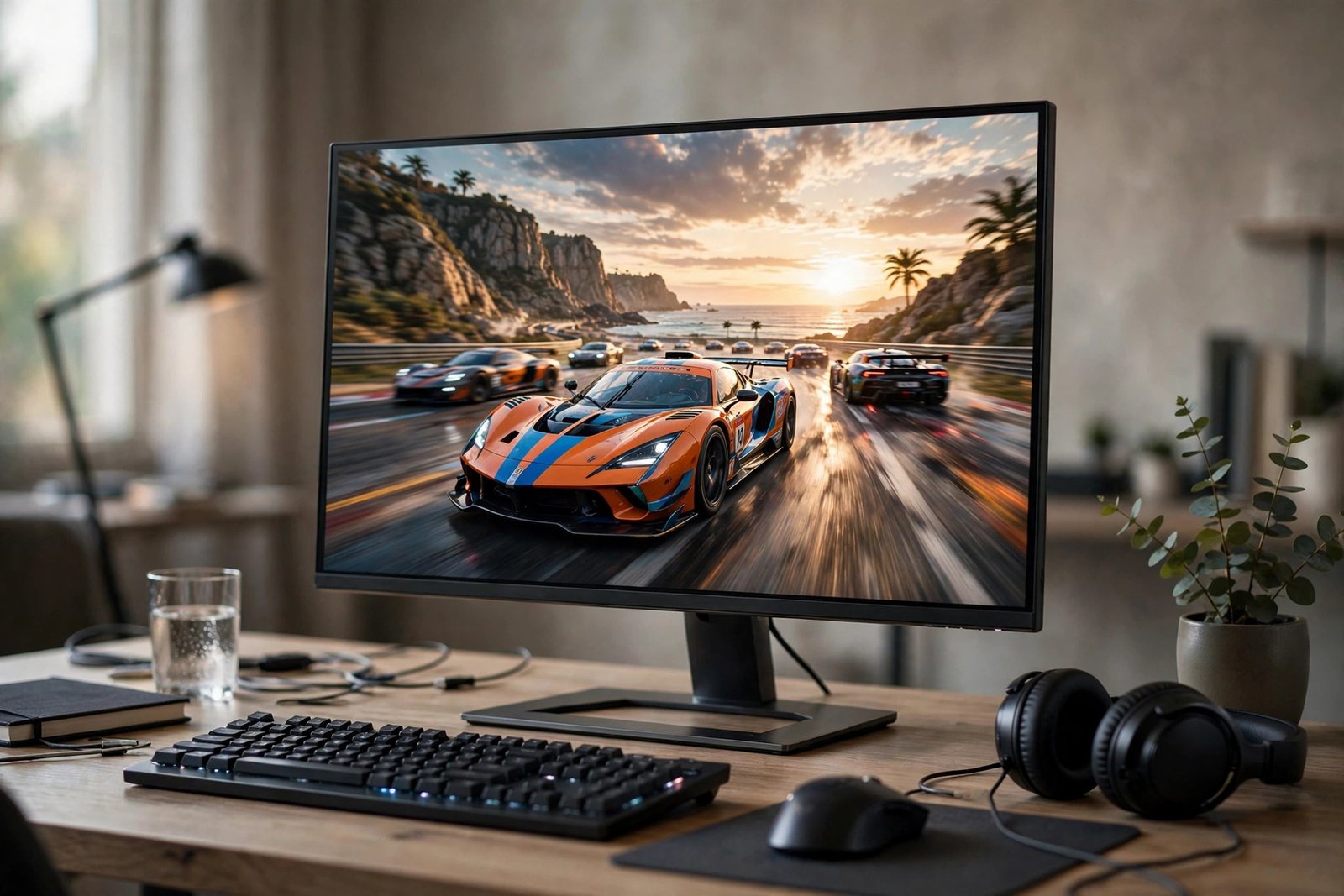
The 144Hz monitor is one of gaming’s most hyped upgrades — smoother motion, lower input lag, a competitive edge. But at $150–$300+ for a decent panel, casual gamers rightly ask: will I actually notice, or is this money better spent elsewhere? The honest answer depends on what you play, what you currently have, and how sensitive you are to motion smoothness. For some casual gamers it’s transformative; for others it’s an expensive placebo.
This guide breaks down what 144Hz actually changes, who benefits most, the situations where it’s wasted money, and how to choose if you decide to upgrade.
What 144Hz Actually Does (and Doesn’t Do)
A 60Hz monitor redraws the image 60 times per second; 144Hz does it 144 times. The result: motion looks dramatically smoother, screen tearing diminishes, and input lag drops — your mouse movements and keypresses appear on screen faster. The difference is immediately obvious in fast motion (camera pans, fast-moving targets) and subtle-to-invisible in static scenes. It’s not about graphics quality — a 144Hz 1080p monitor looks less sharp than a 60Hz 4K monitor; it’s purely about motion fluidity and responsiveness.
What it doesn’t do: make you better at games by itself (it removes a bottleneck; skill still matters), improve single-player cinematic experiences much (many are locked to 30/60fps anyway), or matter if your PC can’t push 100+ frames per second — a 144Hz monitor fed 60fps looks like a 60Hz monitor. The upgrade only pays off when the whole chain (GPU → cable → monitor) delivers high frame rates. RTINGS’ monitor reviews measure real-world response times and input lag so you can compare objectively.
Who Benefits Most: The Casual Gamer’s Checklist
You play fast-paced games: shooters (Call of Duty, Apex, Valorant), racing games, fast action RPGs — these show the biggest difference. If your library is mostly these, 144Hz is the single most noticeable upgrade available. Your PC can push the frames: check your current fps with an overlay — if you’re already hitting 100+ fps in your main games, you’ll see the benefit immediately. If you’re at 60fps on a mid-range GPU, upgrade the GPU first.
You do other motion-sensitive work: video editing timeline scrubbing, 3D modeling, even fast scrolling through documents all feel better at 144Hz — it’s a general quality-of-life upgrade, not just gaming. You’re sensitive to motion: some people instantly see the difference; others barely notice. If possible, view a 144Hz display in person before buying — big-box stores usually have them on display. Your eyes are the ultimate reviewer. Before spending on displays, make sure the rest of your setup is balanced — whether extra RAM is worth it is the same kind of value question.
When It’s Wasted Money
You mainly play slow-paced games: turn-based strategy, point-and-click adventures, visual novels, most JRPGs — these gain almost nothing from 144Hz. A better investment would be a higher-resolution or better-color panel. Your GPU can’t keep up: pairing a 144Hz monitor with a GPU that outputs 45fps is paying for refreshes that never happen. Rule of thumb: your GPU should reach at least 100fps in your main games at your target resolution, or the monitor upgrade should come with a GPU upgrade plan.
You’re on a tight total budget: if $200 for a monitor means a worse GPU, get the better GPU and a 75Hz monitor — GPU affects every frame’s quality; refresh rate only affects motion smoothness. You play on console at 60fps: base PS5/Xbox games often target 60fps; a 144Hz monitor helps only with the subset supporting 120fps mode. Check your specific games. And don’t forget ergonomics of long sessions — protecting your eyes from screen time matters more than refresh rate for marathon gamers.
Choosing the Right 144Hz Monitor (Without Overpaying)
Panel type: IPS for the best colors and viewing angles (ideal for casual gamers who also watch movies) — modern “Fast IPS” panels have response times rivaling old TN panels. VA offers better contrast but can smear in dark scenes; TN is fastest but washes out colors — mostly for competitive purists now. Resolution: 1080p 144Hz is the budget sweet spot ($150–$200) and easiest for GPUs to drive; 1440p 144Hz ($250–$350) is the enthusiast sweet spot but needs a stronger GPU.
Adaptive sync: get FreeSync (works with both AMD and NVIDIA cards now) or G-Sync Compatible — it eliminates tearing when fps fluctuates below 144, which is most of the time in real gaming. Size: 24″ for 1080p, 27″ for 1440p — larger at the same resolution just means bigger pixels. Check Tom’s Hardware monitor reviews for tested picks in each category, and buy from retailers with good return policies — panel quality varies by unit, and dead pixels happen.
Setup Checklist: Getting the Full Benefit
Buying the monitor is only half the upgrade — setup mistakes waste the rest. Enable 144Hz in settings: Windows defaults new monitors to 60Hz; go to Display Settings > Advanced Display and select 144Hz manually. Use DisplayPort: the included cable is usually fine, but verify you’re not on an old HDMI 1.4 cable that caps at 60Hz. Enable adaptive sync in both monitor OSD and GPU control panel to eliminate tearing. Cap fps sensibly: capping at 141fps (just below max refresh) with adaptive sync gives the smoothest tear-free experience. Adjust overdrive: set the monitor’s response-time overdrive to its middle setting — maximum often causes inverse ghosting. Five minutes of setup turns a good purchase into a great one.
Conclusion
For casual gamers, a 144Hz monitor is worth it if you play fast-paced games, your PC can push 100+ fps, and you value motion smoothness — it’s the most immediately noticeable upgrade in gaming. It’s wasted money if you play slow-paced games, your GPU can’t feed it frames, or the budget would be better spent on the GPU itself. Check your fps, view one in person if you can, and buy IPS with adaptive sync. Your eyes will know within 30 seconds whether it was worth it.
Frequently Asked Questions
Can the human eye even see above 60fps?
Yes — this myth persists but controlled tests consistently show people distinguish 60Hz from 120Hz/144Hz easily, especially in motion. Diminishing returns set in higher up (144Hz vs. 240Hz is subtle for most), but the 60→144 jump is one of the most perceptible upgrades in display technology.
Do I need a special cable for 144Hz?
Yes — you need DisplayPort (preferred) or dual-link DVI/HDMI 2.0+ depending on resolution; old HDMI 1.4 cables cap at 60Hz for 1080p. Use the cable that comes with the monitor, connect via DisplayPort when possible, and verify in your GPU settings that 144Hz is actually selected — many people run 144Hz panels at 60Hz for months without realizing.
Is 144Hz good for work and general use too?
Yes — mouse movement, scrolling, and window animations all feel dramatically smoother, reducing perceived lag in everyday computing. Many people who buy 144Hz for gaming report the desktop smoothness alone was worth it. It’s a genuine quality-of-life upgrade beyond games.
Should I get 144Hz 1080p or 60Hz 4K?
For gaming: 144Hz 1080p if you play fast-paced games (smoothness wins); 60Hz 4K if you play cinematic single-player games (visual fidelity wins). For mixed use, 1440p 144Hz splits the difference beautifully — sharper than 1080p, smoother than 60Hz — assuming your GPU and budget allow.