
 By admin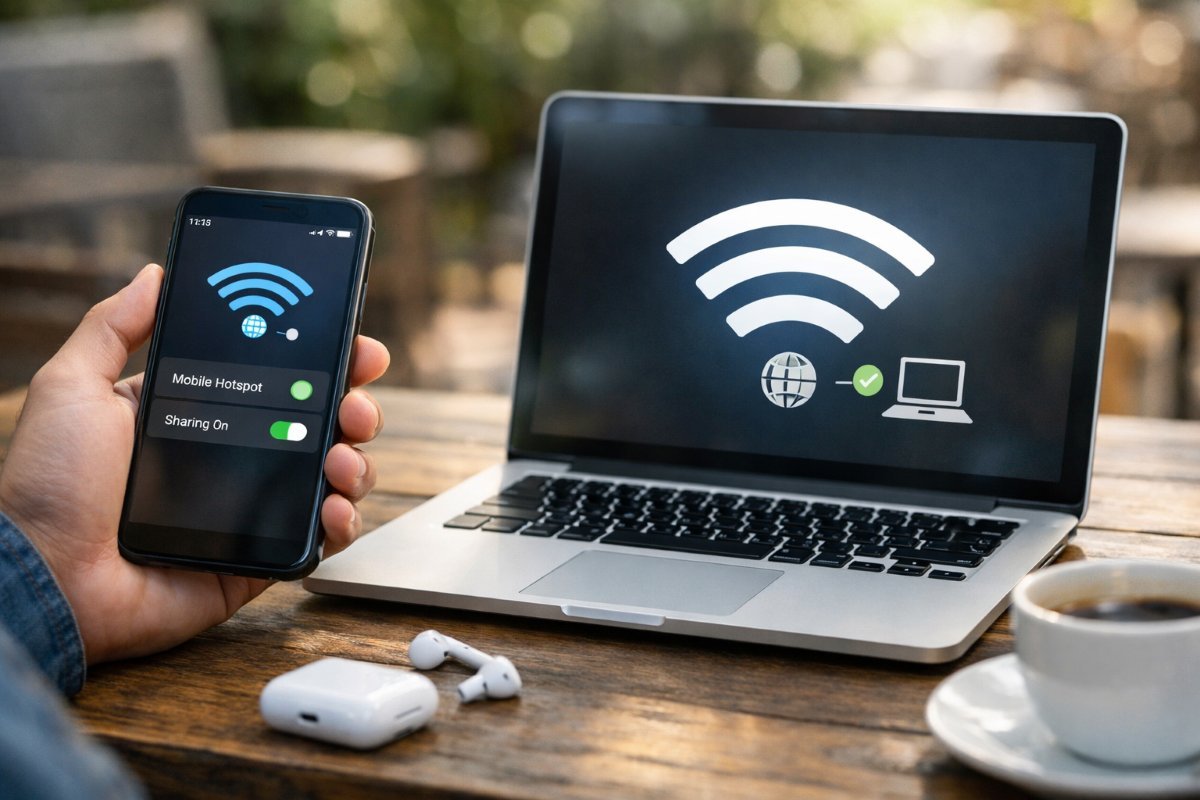
Coffee shop WiFi is down. The hotel charges $15/day for internet. The power’s out but your phone has full bars. Your phone is a perfectly good internet connection for your laptop — you just need to share it. Here’s how to set up a mobile hotspot on iPhone and Android, which method to use when, and how to avoid burning through your data plan.
How do I use my phone as a hotspot for my laptop?
- Go to Settings > Personal Hotspot (or Settings > Cellular > Personal Hotspot).
- Toggle “Allow Others to Join.”
- Note the WiFi password shown — tap it to set something memorable but strong.
- On your laptop, open WiFi networks, select your iPhone’s name, enter the password.
Pro tips: enable “Maximize Compatibility” if an older laptop can’t see the hotspot (it drops to 2.4 GHz, which everything supports). On newer iPhones, the hotspot can stay discoverable even when the screen is off — but keeping the Personal Hotspot settings screen open during initial connection avoids discovery hiccups. Apple’s hotspot guide covers Family Sharing auto-connect, which lets family members join without the password.
Android Setup
- Go to Settings > Network & internet > Hotspot & tethering (exact path varies — Samsung: Connections > Mobile Hotspot and Tethering).
- Tap “WiFi hotspot,” configure the network name and password (use WPA3 or WPA2 security — never leave it open).
- Toggle it on, then connect from your laptop’s WiFi menu.
Android offers nice extras: automatic hotspot turn-off when no devices are connected (saves battery), data limit warnings, and on Pixels, the ability to share via QR code so guests connect without typing passwords.
Three Ways to Tether: WiFi vs. USB vs. Bluetooth
- WiFi hotspot (most common): Easiest, connects multiple devices, but drains phone battery fastest and adds slight latency. Fine for general use.
- USB tethering (fastest + charges phone): Plug the phone into the laptop with a cable, enable USB tethering in the hotspot settings. Lower latency, faster speeds, and your phone charges while you work. This is the best option for video calls and long sessions — if you have a cable handy.
- Bluetooth tethering (most battery-efficient): Slowest by far (fine for email and docs, painful for video), but sips battery. Useful when your phone is nearly dead and you just need to send a few emails.
Watch Your Data: Hotspot Limits Are Real
This is where people get burned. Many “unlimited” plans include only 5–40 GB of high-speed hotspot data, then throttle to unusable 2G-ish speeds (or charge overages on older plans). Check your plan’s hotspot allowance before relying on it — your carrier’s app shows this. A laptop burns data shockingly fast: an hour of Zoom uses 1–1.5 GB, Netflix in HD uses 3 GB/hour, and background OS updates can silently eat gigabytes. Mitigate: set your laptop’s connection as “metered” (Windows: Settings > Network > WiFi > your hotspot > Metered connection ON) to pause automatic updates and cloud syncs. Download large files later on real WiFi.
Speed Tips and Troubleshooting
Hotspot speed depends on your cellular signal — one bar of LTE won’t cut it for video calls. Move near a window or step outside; signal differences within a building are dramatic. If speeds are oddly slow despite good signal, toggle airplane mode on/off to force a fresh tower connection. Keep the phone cool — hotspots heat phones up, and thermal throttling kills speeds; don’t leave it baking in sunlight. And if the laptop connects but “no internet,” toggle the hotspot off and on — the phone’s data session occasionally needs a kick. For context on how much speed you actually need, see how much internet speed working from home requires.
Hotspot vs. Public WiFi: When to Use Which
Your hotspot wins on security and reliability — cellular data is encrypted and far harder to snoop than open WiFi. Use the hotspot for anything sensitive (banking, work email, logins) and save sketchy public networks for casual browsing, or skip them entirely. The trade-off is battery and data caps. Our breakdown of public WiFi safety at coffee shops helps you decide case by case — but when in doubt, hotspot.
International Travel: Hotspot Abroad
Hotspotting abroad is where preparation pays off. First, check your plan’s international terms — many US carriers include 5–10 GB of high-speed data in Canada and Mexico but charge $10/day or per-MB rates elsewhere, and hotspot data abroad is often throttled or excluded entirely. The savvy move: buy a local eSIM (Airalo, Ubigi, or carrier eSIMs) with a generous data allowance — $15–$25 for 10–20 GB in most countries — and hotspot from that. Your US number stays active for calls/texts on the physical SIM while data flows through the cheap local eSIM. It’s the single best travel connectivity hack, and it makes hotel WiFi irrelevant.
Dedicated Hotspot Devices: Worth It?
If you hotspot regularly — RV life, frequent travel, backup home internet — a dedicated hotspot device ($50–$200 plus a data plan) beats phone tethering. Advantages: better antennas and reception than phones, all-day battery, connects 15+ devices, and your phone stays free and cool. Carriers sell them with data-only plans ($20–$60/month for 50–100 GB). For occasional use, phone tethering is fine; for “this is my internet” use cases, dedicated hardware wins on every metric that matters. Some rural users even pair them with external antennas for remarkable results.
Battery Math: How Long Can You Hotspot?
Expect a phone hotspot to drain 10–20% battery per hour with active use — a full charge gives you roughly 5–8 hours of light tethering, less with video calls. For all-day sessions, keep the phone plugged into a charger or power bank; USB tethering to the laptop charges while sharing, which is the most efficient setup. Enable your phone’s battery saver and turn off the hotspot the moment you’re done — an idle-but-on hotspot still sips power. And if your phone gets hot, give it a break: sustained heat degrades long-term battery health faster than almost anything else.
The Bottom Line
Settings > Personal Hotspot (iPhone) or Settings > Hotspot & tethering (Android), set a strong password, connect from your laptop. Use USB tethering for the best speed and battery life, set the connection as metered to protect your data cap, and check your plan’s hotspot allowance before you lean on it heavily. It’s the most underused feature on your phone — start using it.
[…] WiFi — but they don’t need internet. Turn on your phone’s mobile hotspot (see our hotspot setup guide), connect both the TV/stick and a second device to it, and cast locally. The hotspot provides the […]