
 By admin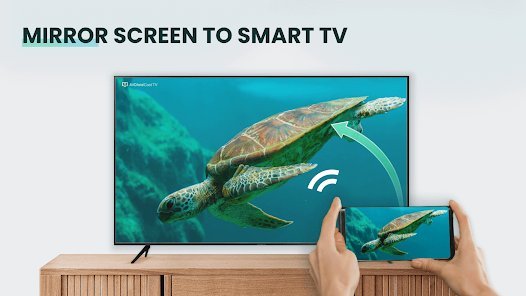
The WiFi’s down, you’re at a cabin with no internet, or you just don’t want to fight with network settings — but you still want that phone screen on the big TV for movie night. Good news: mirroring without WiFi is entirely possible, and some methods are actually more reliable than wireless casting. Here are all five, ranked by simplicity.
How do I mirror my phone screen to my tv without wifi?
The most bulletproof method is a wired HDMI adapter — no network involved at all, just a cable carrying your screen to the TV.
iPhone: Apple’s Lightning to HDMI adapter ($49, or reliable third-party versions for $20–$30) plugs into your phone’s charging port; connect any HDMI cable from the adapter to the TV, switch the TV input, and your screen appears — everything mirrors, including apps that block wireless casting. USB-C iPhones (15 and newer) can use any USB-C to HDMI adapter or cable. Apple’s adapter guide confirms compatibility details.
Android: Many Android phones support USB-C to HDMI directly (Samsung DeX phones, Pixels, OnePlus) — a $15–$25 USB-C to HDMI cable is all you need. Some phones need an MHL or SlimPort adapter instead; check your model’s specs. Plug in, switch TV input, done. Zero configuration, zero lag, works on airplanes, in cabins, during internet outages — anywhere.
The wired method’s hidden advantage: no latency. Wireless mirroring always has a slight delay; HDMI is instantaneous, which matters for gaming and precise video scrubbing.
Method 2: Your Phone’s Hotspot as the “WiFi”
Here’s the trick most people miss: Chromecast, Fire TV, and smart TV casting need WiFi — but they don’t need internet. Turn on your phone’s mobile hotspot (see our hotspot setup guide), connect both the TV/stick and a second device to it, and cast locally. The hotspot provides the local network; casting traffic never touches the internet. Caveat: this uses a second device for casting (phone A hotspots, phone B casts), or cast from the same phone if your apps allow it. It also eats hotspot data if the app streams from the internet — but for locally stored videos and photos, data use is zero.
Method 3: WiFi Direct / Miracast (No Router Needed)
Miracast creates a direct wireless connection between phone and TV — no router, no hotspot, no internet. Many Android phones support it natively (Settings > Connected devices > Cast, or Smart View on Samsung). Many smart TVs have Miracast built in (often labeled “Screen Mirroring”). Both devices just need to be in the same room. iPhones don’t support Miracast (Apple uses AirPlay, which normally wants WiFi) — but some TVs and adapters bridge the gap. Quality varies by device, and there’s noticeable latency, but for slideshows and casual video it’s perfectly fine.
Method 4: USB Drive / Local Playback
Not technically mirroring, but often the pragmatic answer: copy the video files to a USB flash drive, plug it into the TV’s USB port, and play them with the TV’s built-in media player. No phone involved, no network, no adapters, no latency — and it works on virtually every TV made in the last 15 years. For movie nights at the cabin, this is honestly the simplest solution. Most TVs play MP4/H.264 files without issue; check your TV’s manual for supported formats if something won’t play.
Method 5: Offline Downloads + HDMI
Planning ahead beats improvising: Netflix, Disney+, YouTube Premium, and most streaming apps let you download content for offline viewing. Download movies to your phone on WiFi before the trip, then use the HDMI adapter method at the cabin. You get the full streaming catalog with zero connectivity — the best of both worlds. Just remember downloads expire (typically 48 hours after you start watching, 30 days unwatched), so download the night before, not a month before.
Which Method for Which Situation?
- Internet outage at home: HDMI adapter — instant, reliable, uses downloads or local files.
- Cabin/vacation rental: Pre-downloaded content + HDMI adapter, or USB drive. Prepare before you leave.
- Quick photo slideshow for family: Miracast/WiFi Direct — no cables to hunt for.
- Gaming on the big screen: HDMI adapter only — wireless latency ruins gaming.
- Hotel TVs: HDMI adapter wins again — hotel WiFi portals break most wireless casting, but HDMI just works. (Bring your own cable; the TV’s input may be hard to reach.)
If your TV situation is more “the smart features died” than “no WiFi,” a dedicated streaming device for older TVs might be the better long-term fix — and our guide to smart TV WiFi disconnects covers the wireless side when you do have network.
Troubleshooting: When Mirroring Won’t Connect
HDMI adapter showing “no signal”? Try a different HDMI port, ensure the adapter is firmly seated (phone cases often prevent full insertion — remove the case), and test with another cable. Some adapters need external power via a secondary USB plug — connect it. For Miracast failures: both devices need WiFi radios on (even without a network), disable VPNs (they break local discovery), and restart both devices. Chromecast-with-hotspot issues usually trace to AP isolation on the hotspot — use USB tethering instead, or a travel router ($25–$35) which creates a proper local network for all your devices and solves hotel/cabin networking permanently. Travel routers are the unsung heroes of vacation tech.
Presentations and Work: The Professional Angle
No-WiFi mirroring isn’t just for movies — it’s a presentation lifesaver. Conference room WiFi is notoriously hostile to casting (client isolation, captive portals, congested networks). Seasoned presenters carry an HDMI adapter as standard kit: plug in, mirror, present — no network dependency, no “can everyone see my screen?” delays, no latency when advancing slides. For recurring presentations, a dedicated wireless presentation clicker with a USB dongle ($20–$30) lets you advance slides from across the room while the phone stays tethered by HDMI. The most reliable tech is the tech that doesn’t need the venue’s cooperation.
The Bottom Line
A $20–$50 HDMI adapter is the universal answer — works everywhere, zero lag, no network needed. Pair it with offline downloads for the ultimate no-WiFi entertainment kit. Miracast and hotspot tricks cover the wireless-optional cases, and a USB drive is the dead-simplest movie-night solution. Stop fighting hotel WiFi; bring a cable.