
 By admin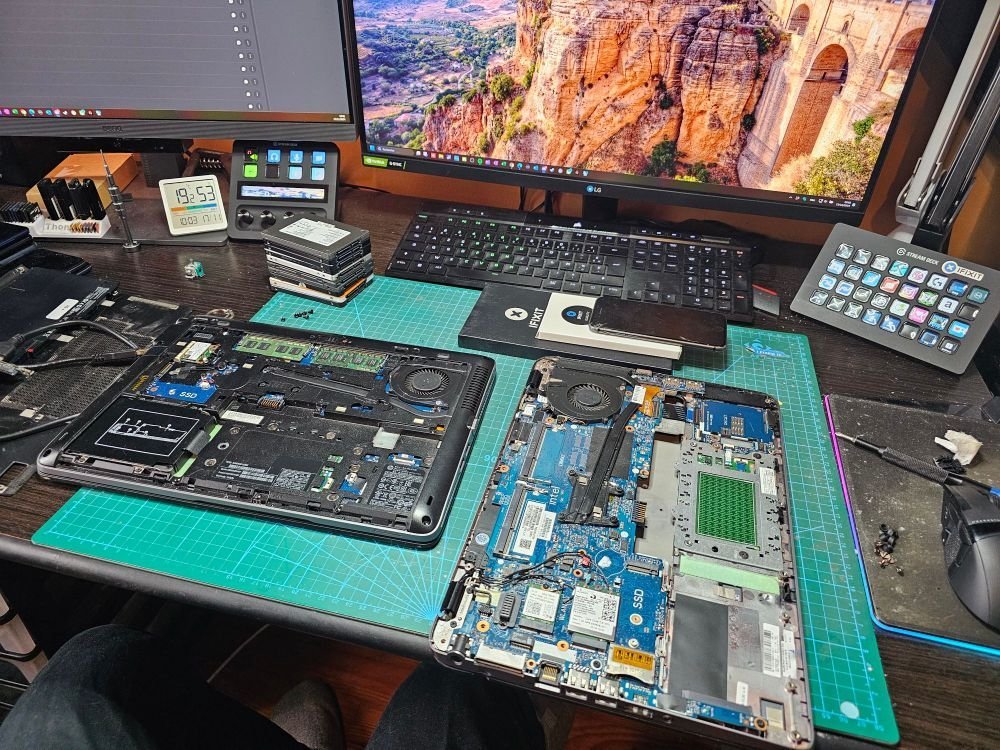
Your laptop takes five minutes to boot, Chrome stutters, and you’ve started pricing replacements. Hold on. Before you spend $600 on a new machine, there’s a good chance your old laptop has years of life left — it just needs some attention. I’ve revived decade-old laptops to perfectly usable daily drivers with the steps below.
Let’s start with the free fixes, then the cheap upgrades that make the biggest difference.
How can I speed up an old laptop without buying a new one?
1. Kill startup programs. Half the battle is what launches at boot. On Windows: Task Manager > Startup apps — disable everything you don’t need immediately (looking at you, Spotify, Discord, and Adobe updaters). On Mac: System Settings > General > Login Items. This alone can cut boot time in half.
2. Uninstall the junk. That antivirus trial from 2021, three photo editors you never opened, the printer software for a printer you don’t own — remove it all. On Windows, also check for manufacturer bloatware.
3. Switch to a lighter browser setup. Chrome is a notorious memory hog. Try Edge, Brave, or Firefox — or at minimum, install a tab suspender extension and stop keeping 60 tabs open. Your RAM will thank you.
4. Turn off visual effects. On Windows, search “Adjust the appearance and performance of Windows” and select “Adjust for best performance.” It won’t win beauty contests, but menus and windows will snap open noticeably faster.
5. Run a malware scan. A machine crawling for no obvious reason is sometimes just infected. Windows’ built-in Microsoft Defender (full scan) or Malwarebytes free catches most culprits. Microsoft’s own security guidance covers the built-in tools well.
6. Free up disk space. A drive that’s 95% full slows everything down. Run Disk Cleanup (Windows) or check Storage settings (Mac), empty the trash, and clear downloads. Aim to keep at least 15–20% of the drive free.
The $50 Upgrade That Changes Everything: An SSD
If your laptop still has a spinning hard drive, replacing it with an SSD is the single most dramatic upgrade possible — I’m not exaggerating. Boot times drop from minutes to seconds, apps launch instantly, and the whole machine feels five years younger. A 500 GB SSD costs around $40–$50, and cloning your old drive takes an afternoon. Crucial’s SSD upgrade guide walks through compatibility and installation step by step.
Fair warning: some ultra-thin modern laptops have soldered storage that can’t be upgraded. Check your model’s specs before buying anything.
More RAM: When It Helps (and When It Doesn’t)
Going from 4 GB to 8 GB (or 8 to 16) makes a real difference if you multitask — it’s the difference between smooth alt-tabbing and everything freezing. But if you already have 16 GB and the machine is still slow, RAM isn’t your problem. Our deep dive on whether extra RAM is worth paying for helps you decide.
Don’t Ignore the Physical Stuff
A laptop clogged with dust overheats, and an overheating CPU deliberately slows itself down to avoid damage — that’s likely why your fan screams constantly. A can of compressed air through the vents (machine off, please) can genuinely restore performance. If you’re comfortable opening the case, replacing dried-out thermal paste is the advanced version of the same fix. See also why your laptop fan is so loud all the time for the full story.
Also: keep the vents unblocked. Using a laptop on a bed or couch pillow chokes airflow. A $15 cooling pad or even just a hard flat surface helps more than you’d expect.
When It’s Time to Let Go
Be honest with yourself: if the laptop is 8+ years old, has a failing battery and a cracked hinge, and still crawls after an SSD and fresh OS install, it’s done. At that point, read our repair-vs-replace breakdown to make the call with real numbers instead of frustration.
The Fresh Start: Reinstalling Your Operating System
When cleanup isn’t enough, a clean OS install is the ultimate reset — it wipes years of accumulated cruft in one shot. On Windows 10/11, Settings > System > Recovery > “Reset this PC” lets you reinstall while optionally keeping personal files (back up anyway — trust me). On Mac, it’s macOS Recovery reinstall. The process takes 1–2 hours mostly unattended, and the result genuinely feels like a new machine. Do this after you’ve already upgraded to an SSD if you’re going that route — installing fresh onto the new drive is cleaner than cloning. One caution: make sure you have license keys and passwords for essential software before wiping, and deauthorize apps like Adobe Creative Cloud or iTunes first to avoid activation headaches.
The Linux Option for Truly Ancient Hardware
Got a laptop from 2012 that even an SSD can’t fully save? Lightweight Linux distributions like Linux Mint Xfce or Lubuntu can make it genuinely usable for web browsing, documents, and media. It’s free, it runs great on 4 GB of RAM, and modern versions are far more beginner-friendly than Linux’s reputation suggests. The trade-off: some Windows-only software won’t run (check alternatives first — LibreOffice covers most Office needs, and everything Google works in a browser). This is a great second life for a laptop that’s otherwise headed for recycling — perfect as a kitchen computer, a kid’s homework machine, or a travel laptop you won’t cry over losing.
Keep It Fast: Two Maintenance Habits
Once your laptop is running well again, keep it that way with almost zero effort. First, restart it at least once a week — “uptime” of 30+ days accumulates memory leaks and background cruft that slow everything down, and a fresh boot clears it instantly. Second, do a 10-minute cleanup quarterly: uninstall programs you no longer use, clear browser data, and check startup apps again (updates love to re-enable themselves). That’s genuinely it. These two habits prevent the slow creep back to sluggishness and can easily add another year or two to your laptop’s useful life.
The Bottom Line
For most slow laptops, the winning combo is: clean up startup programs, switch to a lighter browser, blast out the dust, and — if it has a hard drive — install an SSD. Total cost: under $60 and an afternoon. That’s a fraction of a new laptop, and the result often feels just as good for everyday work.
[…] low, the bottleneck is probably your storage drive or an aging CPU — not memory. See our guide on speeding up an old laptop to diagnose properly, or whether to repair or replace it if it’s getting […]
[…] transforms these machines — see Crucial’s SSD buying guide — see our full guide to speeding up an old laptop. If this is the only problem, repair wins […]
[…] at idle, with the fan screaming, back up your data now — that’s a machine in distress. Our laptop speedup guide covers the full revival process, and repair vs. replace helps you decide if it’s worth the […]