
 By admin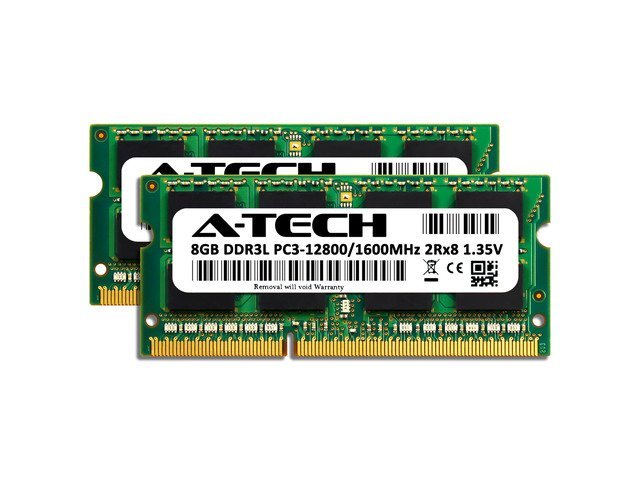
You’re configuring a laptop and hit the classic upsell: 8 GB included, 16 GB for $120 more, 32 GB for $300 more. The salesperson nods knowingly. But is extra RAM actually worth your money, or is it the tech equivalent of undercoating on a new car? The answer is refreshingly straightforward once you know how RAM really works.
Is It Worth Paying Extra for More RAM in a Laptop? The Short Answer
For most people, 16 GB is the sweet spot in 2026 — worth paying extra for if the base model has 8 GB. Jumping from 8 to 16 GB is the single most noticeable upgrade for everyday multitasking. Going from 16 to 32 GB, though, is money wasted for most buyers. Let’s break down why.
What RAM Actually Does (Without the Jargon)
Think of RAM as your desk space and your storage drive as the filing cabinet. A bigger desk lets you spread out more work at once — browser tabs, Spotify, Zoom, Word — without constantly shuffling papers back into the cabinet. When RAM fills up, your laptop starts using the much slower SSD as overflow (called “swap”), and everything gets laggy.
The key insight: extra RAM only helps if you’d otherwise run out. If you never fill 8 GB, 16 GB won’t make anything faster. It’s not like a faster engine — it’s a bigger desk you might never fully use.
How Much RAM Do You Actually Need?
- 8 GB: Fine for light use — web browsing, email, streaming, documents. One thing at a time. This is where most budget laptops sit, and it’s honestly enough for a lot of students and casual users.
- 16 GB: The sweet spot for most people. Comfortable multitasking: 20 browser tabs, Zoom, Spotify, and Office apps running together without breaking a sweat. If you’re buying a laptop to last 4+ years, this is what I’d get.
- 32 GB: Only worth it for specific work — video editing, 3D rendering, software development with virtual machines, heavy photo editing, or serious gaming while streaming. If none of those describe you, skip it.
- 64 GB+: Professional workstations only. If you need this, you already know.
The Math: When the Upgrade Pays Off
Manufacturers typically charge $100–$200 to go from 8 to 16 GB. Spread over a 4-year laptop lifespan, that’s $25–$50 a year for a noticeably smoother experience — absolutely worth it. The 16-to-32 GB jump often costs $200–$300 for benefits most people will never feel — that’s the upsell to decline.
One money-saving trick: many Windows laptops let you upgrade RAM yourself later for much less. A 16 GB stick from Crucial or similar brands often costs $40–$60, versus $150 from the manufacturer. Check whether your model’s RAM is socketed or soldered before buying — Apple’s MacBooks and many ultrabooks have soldered RAM, meaning what you buy is what you’re stuck with forever. In that case, buying more upfront is the only option.
Signs You Actually Need More RAM
Don’t guess — check. On Windows, open Task Manager > Performance > Memory during your normal workload. If it’s consistently above 85%, more RAM will help. On Mac, Activity Monitor’s memory pressure graph tells the same story: yellow or red pressure means you’re running out. If you’re comfortably at 60%, save your money.
Also note: if your laptop feels slow but RAM usage is low, the bottleneck is probably your storage drive or an aging CPU — not memory. See our guide on speeding up an old laptop to diagnose properly, or whether to repair or replace it if it’s getting old.
Shopping Smart: RAM and the Total Package
When comparing laptops, don’t fixate on RAM alone. A laptop with 16 GB of RAM but a dim screen and terrible keyboard is a worse buy than an 8 GB machine that’s excellent otherwise — especially since you can often upgrade RAM later. Prioritize the things you can’t change (screen, keyboard, build quality, battery), then sort out memory. Our roundup of the best budget laptops for college students applies this thinking to real models.
DDR4 vs. DDR5: Does the Generation Matter?
You’ll see DDR4 and DDR5 RAM advertised, with DDR5 costing more. For everyday use, the difference is negligible — maybe 5–10% in specific tasks, invisible in web browsing and Office work. Don’t pay a premium specifically for DDR5 in a budget or mid-range laptop; put that money toward more total RAM or a bigger SSD instead. Where DDR5 matters is integrated graphics performance (relevant for light gaming on laptops without a dedicated GPU) and heavy professional workloads. For the typical buyer choosing between 16 GB of DDR4 and 16 GB of DDR5, treat them as equivalent and pick based on price.
RAM and Gaming: A Special Case
Gamers should think about RAM slightly differently. Modern games increasingly expect 16 GB as a baseline — with 8 GB you’ll hit stuttering in newer titles as the system constantly shuffles data. But beyond 16 GB, gaming returns diminish fast; 32 GB helps only in specific scenarios like heavily modded games or running Discord, OBS, Chrome, and a game simultaneously. One more gaming-specific tip: RAM speed and dual-channel configuration (two matched sticks instead of one) matter more for gaming frame rates than raw capacity. A laptop with 2×8 GB in dual channel will outperform 1×16 GB single-stick in games — worth checking in the specs if gaming is your priority.
What About Unified Memory on Macs?
Apple’s M-series Macs use “unified memory” shared between the CPU and GPU, which is more efficient than traditional RAM — 8 GB of unified memory performs roughly like 12–16 GB on a Windows machine for everyday tasks. That said, the same buying logic applies: because it’s soldered and impossible to upgrade later, buying 16 GB upfront on a Mac you plan to keep for years remains smart money. Apple’s memory upgrades are notoriously pricey ($200 for 8 GB extra), which stings — but being stuck with too little memory for five years stings more.
The Bottom Line
Pay for 16 GB if you’re buying a laptop to keep for years — it’s the cheapest meaningful future-proofing available. Skip 32 GB unless your actual work demands it. And whenever possible, buy a laptop with upgradeable RAM and add memory yourself later for half the manufacturer’s price.