
 By admin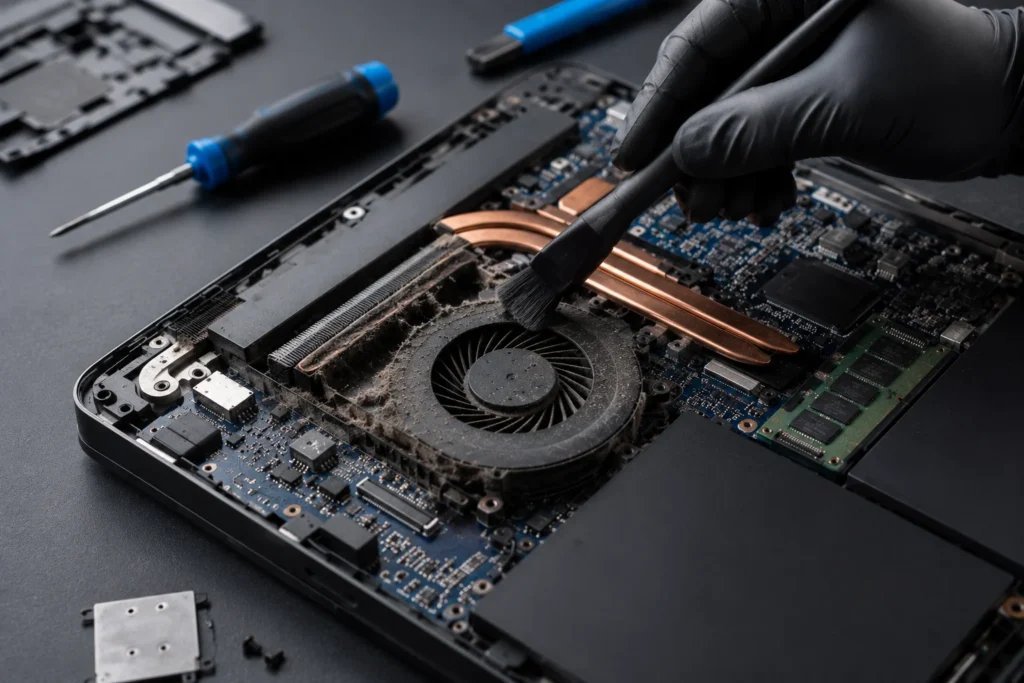
It starts as a gentle whir, then becomes a hair dryer, then you’re on a video call apologizing for the jet engine next to you. A constantly loud laptop fan isn’t just annoying — it’s your laptop crying for help. The fan is doing its job (preventing your CPU from cooking itself); the question is why it has to work so hard. Let’s diagnose.
Why is my laptop fan so loud all the time?
1. Dust-clogged vents and fans (most common). Over months and years, dust bunnies accumulate on heatsinks and fan blades, insulating the components and blocking airflow. The fan spins faster to compensate, getting louder and louder. This is the #1 cause of gradually-loudening fans, and it’s completely fixable.
2. Something hogging the CPU. Open Task Manager (Ctrl+Shift+Esc) > Processes, sorted by CPU. Common culprits: Chrome with 40 tabs, antivirus scans, Windows Update, cloud backup initial syncs, cryptocurrency miners (if malware), and runaway background processes. If CPU sits above 30% at idle, something’s wrong — find it and kill it. Mac users: Activity Monitor serves the same purpose.
3. Dried-out thermal paste. The paste conducting heat from CPU to heatsink dries out over 3–5 years, becoming less effective. The CPU runs hotter, the fan works harder. This explains fans that got progressively louder over years despite clean vents.
4. Hot environment / blocked vents. Using the laptop on a bed, couch, or your actual lap (the name lies) blocks intake vents on the bottom. Ambient heat matters too — a laptop in a 90°F room works much harder than in a 70°F one.
5. Demanding software on modest hardware. Video calls, games, and creative apps legitimately need cooling — some fan noise during heavy use is normal and healthy. Constant max-speed fan at idle is not.
The Fixes, Easiest First
Blast the vents (5 minutes). Power off, then shoot short bursts of compressed air into the exhaust vents (where hot air comes out) and intake vents (usually the bottom). Hold the can upright — tilting sprays freezing liquid. Do this outside; the dust cloud is impressive. This alone fixes maybe 40% of loud-fan cases.
Kill the CPU hogs. Found the culprit in Task Manager? Uninstall it, disable its startup entry, or replace it (e.g., switch from a bloated antivirus to Windows’ built-in Defender). Close unused browser tabs — each one sips CPU. Pause cloud backups during work hours and let them run overnight.
Lift it and ventilate. A $15–$25 cooling pad or laptop stand lifts the machine for airflow underneath. Even four bottle caps under the corners help in a pinch. Never use the laptop on soft surfaces — hard, flat, ventilated always.
Adjust power settings. Windows: Settings > System > Power > “Best power efficiency” reduces heat at the cost of some speed — perfect for browsing and documents. Macs handle this automatically, but closing intensive apps helps. Microsoft’s power plan guidance explains the trade-offs.
The Deeper Fix: Opening It Up
If external cleaning didn’t help and the laptop is 3+ years old, the inside needs attention. What’s involved: remove the bottom panel (usually 8–12 screws — check iFixit for your model’s guide), clean the fan blades and heatsink fins with compressed air and a soft brush, and — the big one — replace the thermal paste. Quality paste (Arctic MX-4, Noctua NT-H1) costs $8, and the procedure is: remove heatsink, clean off old paste with isopropyl alcohol, apply a pea-sized dot of new paste, reattach. It’s genuinely a 30-minute job that can drop temperatures 10–20°C, transforming fan behavior. Honest caveat: this voids warranties on some machines and risks damage if you’re clumsy. If that sentence made you nervous, pay a repair shop $50–$80 to do it — still far cheaper than a new laptop.
When Loud Fans Signal Something Serious
Grinding, clicking, or rattling (not just whooshing) means bearing failure — the fan itself is dying. Replacement fans cost $15–$40 and are usually a straightforward swap, but a dead fan means no cooling, so don’t ignore it. Sudden loudness after a drop could mean a dislodged heatsink — get it checked before heat damages the CPU. And if the laptop is hot enough to be uncomfortable on your lap even at idle, with the fan screaming, back up your data now — that’s a machine in distress. Our laptop speedup guide covers the full revival process, and repair vs. replace helps you decide if it’s worth the effort.
Prevention: Keep It Quiet Long-Term
Blow out vents every 3–6 months (set a reminder — you’ll forget otherwise). Use the laptop on hard surfaces or a stand. Keep software updated (manufacturers tune fan curves in firmware updates). Don’t block vents with stickers or skins. And repaste every 3–4 years if you keep laptops long-term — it’s the highest-impact maintenance most owners never do. A little prevention means you never meet the jet engine in the first place.
Fan Control Software: Taming the Curve
Some laptops let you customize fan behavior. Manufacturer utilities (Lenovo Vantage, Dell Power Manager, ASUS Armoury Crate, HP Omen Gaming Hub) often include thermal profiles — “Quiet” mode caps fan speed at the cost of some performance, perfect for libraries and meetings. Third-party tools like NoteBook FanControl (Windows) offer granular curve editing for supported models. Caution: don’t disable fans or set curves too aggressively — the fan curve exists to prevent damage, and overriding it recklessly can cook components. “Quiet” manufacturer presets are safe; manual curves near zero are not. When in doubt, clean the dust instead of fighting the fan curve — the curve is usually right.
Quick Reference: The 5-Minute Fix Order
Memorize this sequence: check Task Manager for CPU hogs, blast vents with compressed air, raise the laptop off soft surfaces, switch to power-efficiency mode. That order resolves the vast majority of loud-fan complaints in under five minutes. Only if all four fail should you open the machine or visit a repair shop — and at that point, you’re dealing with thermal paste or a dying fan, both cheap fixes.
The Bottom Line
Constant loud fans mean dust, CPU hogs, dried thermal paste, or blocked vents — in that order of likelihood. Blast the vents, kill background CPU usage, raise the laptop, and repaste if it’s old. Grinding noises mean replace the fan promptly. Ten minutes of maintenance quiets most laptops dramatically.