
 By admin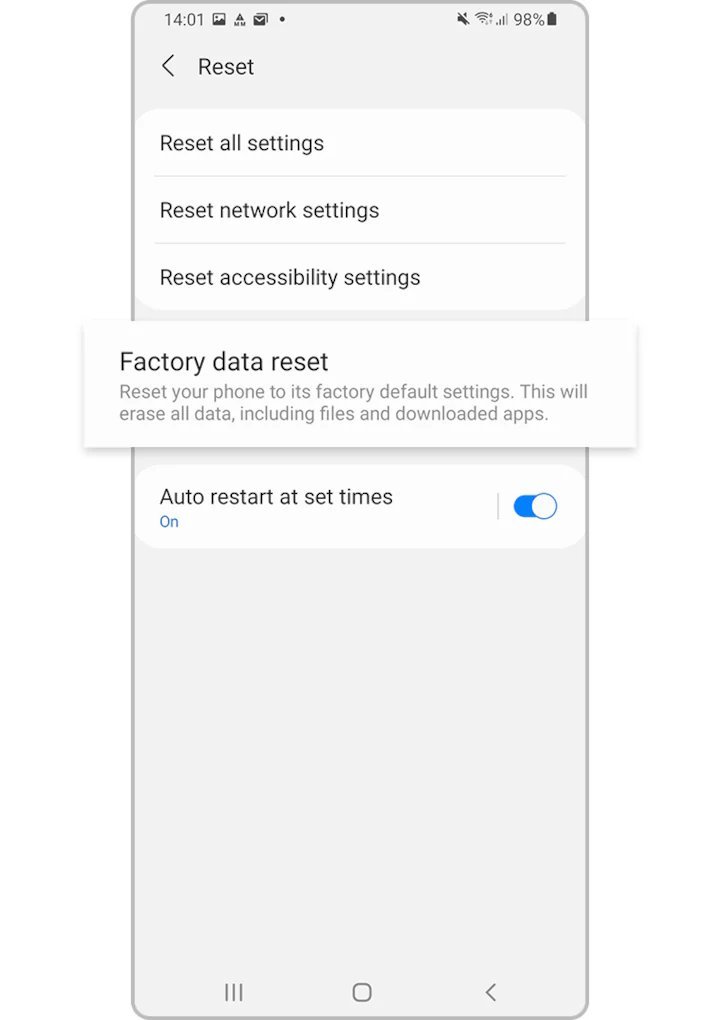
Selling your old phone is smart money — but only if your photos, messages, banking apps, and passwords don’t go along for the ride. A proper factory reset takes 15 minutes and the difference between “wiped” and “actually wiped” matters. Here’s the complete checklist for iPhone and Android.
How do I factory reset my phone before selling it?
Non-negotiable: back up before you wipe. iPhone: Settings > [Your Name] > iCloud > iCloud Backup > Back Up Now (on WiFi, plugged in). Android: Settings > Google > Backup > Back up now. Also manually verify: photos (check they exist in Google Photos/iCloud on another device), authenticator apps (transfer codes to the new phone first — losing 2FA access is a nightmare), WhatsApp chats (in-app backup), and any files in Downloads or local folders that aren’t cloud-synced. Our guide on transferring photos to a new phone covers the trickiest part of migration.
iPhone: The Correct Wipe Sequence
- Sign out of iCloud. Settings > [Your Name] > Sign Out. This disables Activation Lock — the single most important step. A phone still tied to your Apple ID is a brick to the buyer and a headache for you when they complain.
- Unpair Apple Watch if you have one (Watch app > Unpair) — this also creates a final watch backup.
- Sign out of iMessage. Settings > Messages > toggle off. If you skip this and switch to Android, you’ll miss texts from iPhone friends for weeks (the infamous blue-bubble black hole).
- Erase: Settings > General > Transfer or Reset iPhone > Erase All Content and Settings. Enter your passcode and Apple ID password when prompted.
- Remove from your account: Go to appleid.apple.com > Devices, and remove the phone. Double-protection against Activation Lock surprises.
Apple’s official erase guide confirms this sequence. The whole process takes about 10 minutes plus the erase itself.
Android: The Correct Wipe Sequence
- Remove your Google account first. Settings > Passwords & accounts > your Google account > Remove account. This disables Factory Reset Protection (FRP) — Android’s equivalent of Activation Lock. Skip this and the buyer gets locked out.
- Remove screen lock (set to None/Swipe) — some buyers’ setups trip on residual lock settings.
- Back up and remove other accounts: Samsung account, WhatsApp, banking apps — sign out of everything.
- Encrypt first (older Androids): On Android 5 and earlier, enable encryption (Settings > Security > Encrypt phone) before resetting — older versions didn’t encrypt by default, and a reset alone left recoverable data. Android 6+ encrypts by default, so this step is unnecessary on any modern phone.
- Factory reset: Settings > System > Reset options > Erase all data (factory reset). Confirm.
- Remove the SD card if there is one — wipe it separately or keep it.
Google’s reset instructions cover variations across manufacturers.
Is Your Data Really Gone? (The Paranoid’s Guide)
On any modern phone (iPhone 5s+, Android 6+), yes — encryption keys are destroyed during reset, making remaining data cryptographically unrecoverable. That’s not marketing; it’s how the encryption architecture works. The “write zeros over the drive three times” advice is for ancient unencrypted devices and spinning hard drives, not modern phones. One exception: SD cards removed separately should be wiped on a computer (full format, not quick format) since they may not be encrypted. And if you’re truly paranoid about a phone with an SD card slot running old Android — physically destroy the card. They’re $10 to replace.
After the Reset: Verify Before Handing Over
Power on the reset phone and walk through the first setup screens just far enough to confirm: no Apple ID/Google account prompt for YOUR accounts (it should ask for new setup), no personal data visible anywhere, and (for iPhones) no Activation Lock screen. Then power it off. If selling online, take photos of the phone powered on showing the clean setup screen — it reassures buyers and prevents “it’s iCloud locked” disputes. Remove the SIM card (or eSIM profile) — obvious, but people forget. Our guide on buying refurbished phones is worth sharing with your buyer, incidentally — it’s the same market from the other side.
Maximizing Your Sale Price
Quick wins: clean the phone thoroughly (microfiber cloth, toothpick for the charging port — grime knocks $20 off perceived value), include the original box and unused accessories, take well-lit photos from multiple angles showing any flaws honestly (hiding damage backfires in disputes), and factory-reset before listing so you can advertise it as “ready to activate.” Check recently-sold listings (not asking prices) on eBay and Swappa for realistic pricing. Carrier-locked phones sell for less — have your carrier remove the lock first if eligible (carriers must do this for paid-off phones on request).
Trading In vs. Selling Yourself
Trade-in programs (Apple, Samsung, carriers, Best Buy) offer convenience: instant credit, no strangers, no haggling. But they pay 20–40% less than private sales. The math: a phone worth $400 on Swappa might fetch $280 as trade-in. Is $120 worth the hassle of listing, photos, messages, and shipping? For many people, yes — it’s an hour of work for $120. For others, the convenience wins. Middle ground: carrier trade-in deals during new phone launches sometimes offer inflated values ($800 off with trade!) that beat private sales — those promos are genuinely the best deal when available. Check trade-in values first (they’re instant online quotes), then decide if the private-sale premium is worth your time.
Don’t Forget the Accessories
When selling, gather everything: original box, unused charger and cable, SIM ejector tool, and any cases you’re not keeping. A complete-in-box phone sells faster and for more — buyers pay a premium for the feeling of “basically new.” And wipe any paired accessories too: factory-reset the smartwatch if selling it with the phone, and remove the phone from your car’s Bluetooth paired devices (your contacts and call logs can linger in car infotainment systems — a privacy leak most sellers never consider).
The Bottom Line
Back up, sign out of iCloud/Google (disabling activation locks — the critical step), unpair accessories, erase via settings, verify the wipe, remove SIM. Fifteen minutes of diligence protects your identity and gets you the best price. Your data is cryptographically gone on any modern phone — no need for dramatic destruction rituals.