
 By admin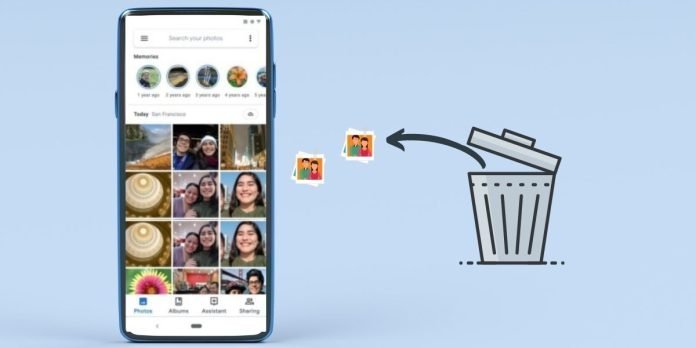
That stomach-drop moment: you deleted a photo album you meant to keep, or a cleanup app went rogue. Take a breath — on Android, “deleted” photos usually aren’t gone immediately. There’s a window where recovery is easy, and it closes with time. Here’s what to do right now, in order of likelihood.
How can I recover deleted photos from my android phone?
Most gallery and cloud apps keep deleted photos for 30–60 days before permanent deletion. Check all of these:
- Google Photos: Library > Trash. Select photos > Restore. They return to their original albums. Google Photos keeps trash for 60 days. Google’s help page covers the exact steps.
- Samsung Gallery: Menu > Trash (Recycle bin). Samsung keeps deleted items 30 days.
- Files by Google / device trash: Some phones have a system-level trash in the Files app — worth a look.
- WhatsApp/media folders: Photos received in chats often survive in WhatsApp’s Media folder even after gallery deletion.
This resolves the vast majority of cases. If your photos are in trash, restore them now and skip the rest.
Check Your Cloud Backups
Even if you didn’t “set up backup,” it might be on. Check Google Photos (photos.google.com on a computer — sign in and search), Samsung Cloud, OneDrive (Samsung phones often auto-sync here), and Dropbox camera uploads. I’ve seen countless “lost” photos sitting safely in a cloud account the owner forgot about. Also check old phones and tablets signed into the same accounts — synced libraries mean the photo may live on three devices.
Recovery Apps and Software (When Trash Is Empty)
If the photos bypassed trash (SD card deletion, “permanent delete,” or the 30 days expired), recovery gets harder but isn’t hopeless. Deleted files remain on storage until overwritten — so stop using the phone immediately: don’t install apps, take photos, or download anything. Every write risks overwriting your photos permanently. Enable airplane mode to stop background syncs.
Then try: DiskDigger (free, no root needed for basic scan — recovers thumbnails and some full images), or desktop software like Dr.Fone or Stellar Photo Recovery with the phone connected via USB. Success rates vary wildly — recently deleted photos on a lightly-used phone recover well; months-old deletions on a nearly-full phone usually don’t. Be skeptical of apps demanding payment before showing results; legitimate tools preview recoverable files free.
The SD Card Advantage
Photos deleted from a microSD card are the easiest to recover: remove the card, plug it into a computer with an adapter, and run Recuva (Windows, free) or PhotoRec (free, all platforms). Don’t write anything to the card in the meantime. SD recovery success rates are genuinely good because cards are simple storage without Android’s background processes churning data. This is also an argument for keeping photos on SD cards if your phone supports them.
When to Call a Professional
For irreplaceable photos (wedding, deceased loved one, once-in-a-lifetime trip) that software can’t recover, data recovery labs exist — DriveSavers and similar services recover from dead phones and damaged storage. It costs $300–$1,000+, so it’s only for the truly irreplaceable. For everything else, the economics don’t work. Be honest about which category your photos fall into before spending.
Prevention: Never Do This Again
Set up automatic backup today — it takes five minutes and makes this entire article irrelevant to your future self. Enable Google Photos backup (or Samsung Cloud/OneDrive), and keep the trash-retention habit in mind. Pair this with our guide on freeing up phone storage safely (the Android principles are identical) so you never bulk-delete in a storage panic again. And before any major phone change, read how to transfer photos between phones — migration is when most accidental deletions happen.
Manufacturer-Specific Recovery Options
Beyond the generic methods, check your manufacturer’s own tools. Samsung’s Smart Switch (desktop app) may have old backups you forgot making — connect the phone and check for backup archives. Google’s Pixel phones back up to Google One, which includes a trash-like recovery window for device backups. Xiaomi, OnePlus, and Motorola each have their own cloud services with varying retention. It’s worth ten minutes to check each cloud service tied to your phone brand — people are often surprised by backups they never consciously enabled. When in doubt, log into every cloud account you own on a computer and search for the photos directly; the phone interface sometimes hides what the web interface reveals.
What Recovery Software Can’t Do (Honest Limitations)
Let’s set expectations honestly. Modern Android phones use file-based encryption and TRIM on internal storage, which means deleted files get wiped from the flash memory far more aggressively than on old devices or SD cards. If the photos were on internal storage (not SD), were deleted more than a few days ago, and the phone has been in active use since, recovery software success rates are low — often under 20%. The software isn’t scamming you; the physics of flash storage just works against recovery. This is why the “stop using the phone immediately” advice matters so much, and why cloud backup is the only reliable safety net. Treat recovery software as a hopeful attempt, not a plan — the plan is backups.
The 5-Minute Backup Setup (Do It Now)
Open Google Photos > profile picture > Photos settings > Backup, and turn it on. Choose “Storage saver” quality for unlimited-ish free backup (counts against your 15 GB Google storage, but compressed) or “Original quality” if you have Google One space. That’s it — every photo you take from now on is safe. While you’re there, enable backup for device folders (Screenshots, WhatsApp, Downloads) so nothing slips through the cracks. Five minutes today prevents every future panic that led you to this article.
The Bottom Line
Check trash first (Google Photos, Samsung Gallery, Files app) — that’s where 90% of “deleted” photos are. Then check cloud backups and old devices. Only then try recovery software, and stop using the phone immediately to avoid overwriting. And set up auto-backup today so you never need this guide again.