
 By admin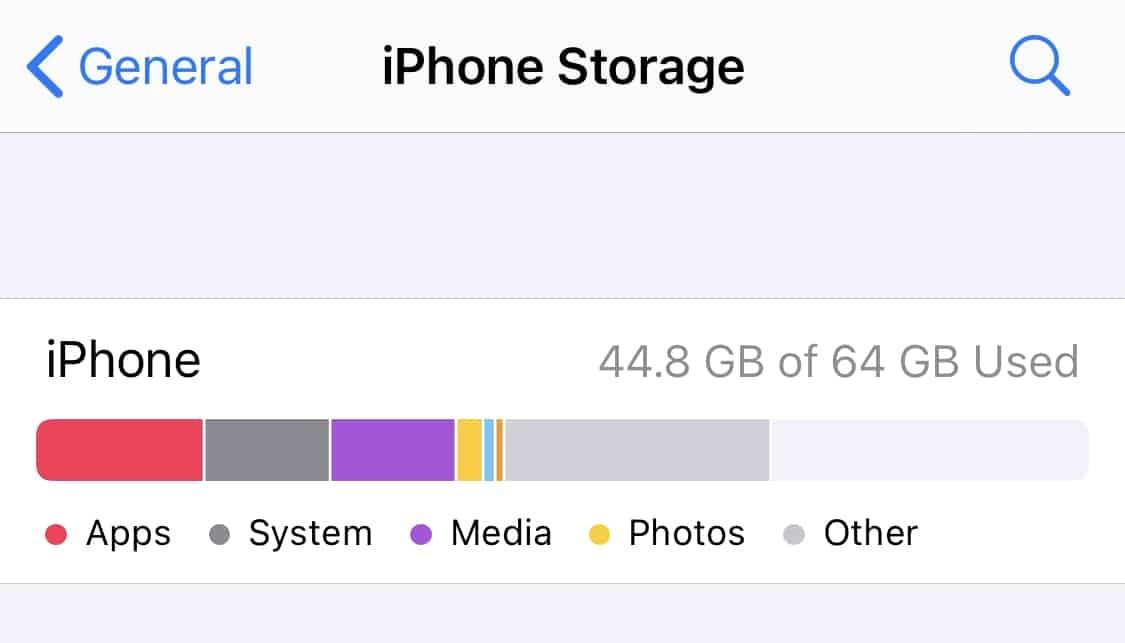
“Storage Almost Full.” Those three words have ruined more good moods than almost any other notification. You go to snap a photo of your kid’s birthday cake and — nope, no room. The good news: you don’t have to delete a single precious photo to fix this. I’ve cleared 20+ GB off iPhones using the tricks below without losing one memory.
Let’s start with the biggest wins first.
How do I free up storage on my iphone without deleting photos?
Go to Settings > General > iPhone Storage. Wait for the colorful bar to load — this shows exactly what’s eating your space. For most people, the culprits are Photos, Messages (yes, really), and a handful of apps like WhatsApp, TikTok, or Spotify. Apple’s own iPhone storage management guide walks through this screen too, but here’s what actually works in practice.
Offload Unused Apps (The Easiest Win)
On that same storage screen, tap “Offload Unused Apps.” This removes the app itself but keeps all its documents and data. When you tap the grayed-out icon later, it redownloads in seconds. I offloaded six apps I hadn’t opened in months and got back nearly 4 GB instantly. Your photos, messages, and files stay exactly where they are.
Tame Your Messages App
Here’s the one nobody expects: years of text threads with photos, videos, and GIFs can quietly eat 10–15 GB. Go to Settings > Messages > Keep Messages and change it from “Forever” to “1 Year.” Your photos in the Photos app are untouched — this only trims old message attachments. You can also go into a specific thread, tap the contact name, scroll to Photos, and delete just the memes and duplicates while keeping the good stuff.
Clear the Hidden Cache Hogs
- Safari: Settings > Safari > Clear History and Website Data. Frees a few hundred MB of cached web data.
- WhatsApp/Telegram: Open the app’s storage settings and clear cached media. Group chats are notorious — one family group can hold 3 GB of forwarded videos.
- Spotify/Apple Music/Podcasts: Downloaded playlists and episodes pile up. Delete downloads for playlists you don’t listen to anymore; streaming them later costs you nothing.
- Recently Deleted album: Photos you “deleted” sit in Recently Deleted for 30 days still taking up space. If you’re sure, empty it now.
Optimize Photos Instead of Deleting Them
This is the big one. Go to Settings > [Your Name] > iCloud > Photos and turn on “Optimize iPhone Storage.” Your full-resolution photos upload to iCloud, and your phone keeps lightweight versions that look identical on screen. A 40 GB photo library can shrink to 5–8 GB on the device. The catch: you need enough iCloud space. Apple gives you 5 GB free (not enough), but the 50 GB plan is $0.99/month — less than a coffee. Compare iCloud storage plans if you’re on the fence.
Not an iCloud person? Our comparison of cloud storage vs. external hard drives breaks down the trade-offs honestly, including free options like Google Photos. And if you’re moving to a new device soon, check how to transfer photos from an old phone to a new phone — several of those methods double as great backup strategies.
Review Large Attachments the Smart Way
Back on the iPhone Storage screen, tap any app to see its documents. WhatsApp, in particular, lets you review and bulk-delete large files. I once found a single 2 GB video someone sent in 2021 sitting in there. Gone in two taps.
What NOT to Do
Don’t download sketchy “cleaner” apps from the App Store — Apple’s sandboxing means they can’t actually clean much, and some are just ad machines. Don’t factory reset your phone out of frustration either; that’s a last resort that risks your data. And don’t delete photos in a panic before checking that they’re backed up somewhere.
Audit These Storage Hogs Once a Month
Storage fills back up — that’s just how phones work. Build a two-minute monthly habit: open Settings > General > iPhone Storage and glance at the top five apps. Social apps are the worst repeat offenders. TikTok, Instagram, and Reddit all cache endless video previews; offloading and reinstalling them every few months reclaims gigabytes with zero downside since your account data lives in the cloud. Also check the “Review Large Attachments” suggestion Apple surfaces — it’ll flag the biggest space wasters for you. I do this on the first Sunday of each month while my coffee brews, and my phone hasn’t shown the “Storage Almost Full” warning in over a year.
Shared Albums: The Free Unlimited Workaround
Here’s a trick Apple doesn’t advertise much: shared iCloud albums don’t count against your iCloud storage. Create a shared album, add up to 5,000 photos or videos to it, and they live in the cloud free — viewable on all your devices. The catch is that shared albums compress photos slightly (2048 pixels on the long edge), so don’t use this as your only backup for irreplaceable originals. But for everyday snapshots you want accessible without hogging phone space? It’s genuinely useful. Pair this with a real backup on an external drive once or twice a year and you’re covered from every angle.
When It’s Time to Just Get More Storage
Sometimes the honest answer is that you’ve outgrown your phone. If you’re constantly fighting the storage warning on a 64 GB iPhone despite doing everything above, the time you spend managing space has a cost too. The $0.99/month 50 GB iCloud plan or the $2.99/month 200 GB plan (which you can share with family) is cheaper than the frustration. And when you eventually upgrade, treat storage as a priority spec — the $100 jump from 128 GB to 256 GB pays for itself in sanity over three years. Future you will be grateful.
Your 10-Minute Action Plan
If you do nothing else, do these three things right now: enable Offload Unused Apps, switch Messages to keep one year, and turn on Optimize iPhone Storage. That combination alone frees up space for 90% of people — I regularly see 15–25 GB reclaimed. Your photos stay safe, your phone stops nagging you, and you can get back to actually using it.
[…] for Android), so your phone backup lives on the same external drive. Pair this with our guide on freeing up iPhone storage without deleting photos for a complete phone data […]