
 By admin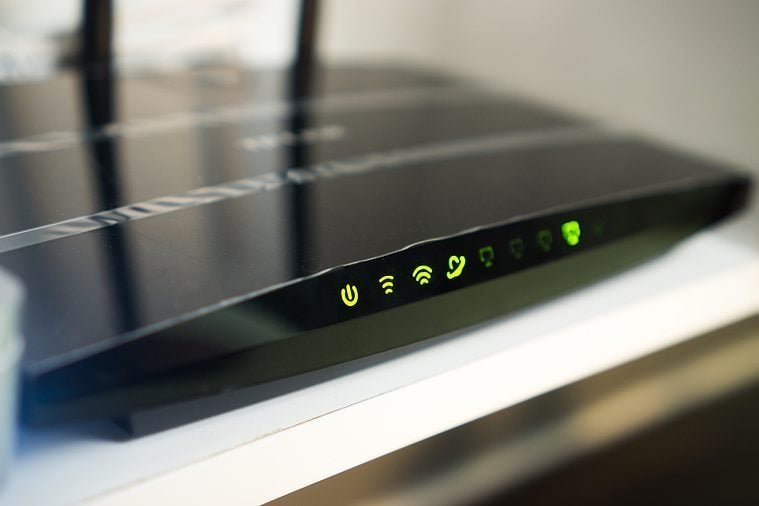
Internet’s down, you glance at the router, and there it is: a red light blinking at you like a tiny alarm. Before you spiral, know that a blinking red light is actually informative — it’s the router telling you exactly what’s wrong. Here’s how to read it and what to do.
What does it mean when my router light is blinking red?
Across nearly all brands, red means “I can’t connect to the internet.” The blink pattern adds detail: a slow blink usually means it’s trying to connect; a fast blink or solid red often means it tried and failed, or there’s a hardware/service problem. The crucial distinction: is the red light on the “internet/WAN” indicator or the “power” indicator? Internet/WAN red = connection problem (fixable). Power red = hardware failure (probably replace). Check your router’s manual or the tiny icons by the lights — they’re labeled, just microscopically.
Brand-by-Brand: What Red Means
- Xfinity/Comcast gateway: Blinking orange/red = connecting; solid red = no internet. Check Xfinity’s support pages for outage info in your area.
- Spectrum: Red light on modem = no signal from Spectrum’s network. Usually a service outage or line issue.
- Netgear (Nighthawk/Orbi): Red internet LED = no IP address from modem. Netgear’s support site has model-specific light guides.
- Eero/Google Nest: Red = no internet connection; the app usually explains exactly why — check it before touching hardware.
- AT&T gateway: Red broadband light = no DSL/fiber signal. Try the troubleshooting in the Smart Home Manager app.
The Fix Sequence (Do These in Order)
1. Check for outages first. Before touching anything, check your ISP’s outage page or app, or ask a neighbor. If the whole street is down, no amount of rebooting helps — you’ll just waste 20 minutes. This step alone resolves a huge share of “mystery” red lights.
2. Power cycle properly. Unplug both modem and router. Wait a full 60 seconds (not 10 — capacitors need time to discharge). Plug in the modem first, wait until its lights stabilize (2–3 minutes), then plug in the router. Order matters: the router needs the modem fully online before it tries to connect.
3. Check every cable. Coax finger-tight (not wrench-tight — you’ll damage it), Ethernet cables clicked in fully, no cables chewed by pets or pinched under furniture. Swap the Ethernet cable between modem and router if you have a spare — cables fail more often than people think.
4. Bypass the router. Plug a computer directly into the modem with Ethernet. If the internet works, the router is the problem; if not, it’s the modem or the ISP’s line. This single test tells you (and tech support) exactly where the fault lies.
5. Factory reset as a last resort. Hold the reset button 10–30 seconds. You’ll need to reconfigure WiFi names and passwords afterward, so only do this if you’re comfortable with setup — or when tech support tells you to.
When to Call Your ISP (and What to Say)
Call when: the bypass test shows the modem itself has no connection, outages are ruled out, and power cycling failed. Say this exact sentence: “I’ve power-cycled the modem and router, checked all cables, and connected directly to the modem with no internet. Can you check the signal levels on my line?” This tells the rep you’ve done the basics and skips 15 minutes of script-reading. Ask them to check for: area maintenance, signal/noise levels on your line (bad levels = technician visit), and whether your modem is on their approved/supported list (outdated modems get quietly dropped).
Recurring Red Lights? It Might Be the Hardware
A router that needs weekly reboots is dying — capacitors age, memory leaks accumulate, and heat damage compounds. If red lights are a monthly event, replace the unit rather than suffering. Modems provided by ISPs are often ancient refurbished units; buying your own approved modem ($80–$150) usually pays for itself in a year by eliminating the rental fee, and it’s newer and more reliable. If WiFi issues (not total outages) are your recurring complaint, our guides on slow laptop WiFi and upstairs dead zones cover the wireless side. And the FCC’s broadband guide helps you verify you’re getting the speeds you pay for when things are working.
Decoding Other Router Light Colors
While you’re learning router-ese: solid green/white = everything fine. Blinking green/white = normal activity (it’s supposed to blink — that’s data flowing). Amber/orange = usually “starting up” or a partial connection; if it stays amber for more than a few minutes, treat it like red. No lights at all = power issue — check the adapter and outlet before assuming the router died (power adapters fail more often than routers). Blinking blue (Eero, some mesh systems) = ready for setup, not an error. Knowing the normal patterns means you only worry when something actually changes — and you can reassure family members that yes, the blinking green light is supposed to do that.
Preventing Future Outages: Redundancy on a Budget
If you work from home, internet outages cost real money — consider cheap redundancy. A phone hotspot (see our hotspot guide) covers short outages free. A UPS battery backup ($50–$80) keeps your modem and router alive through power blips — most “outages” during storms are just the router rebooting, and a UPS eliminates them entirely. For the truly outage-averse, a dual-WAN router ($100+) with a cheap prepaid hotspot as backup internet switches over automatically. And keep your ISP’s outage number and your account number somewhere accessible — hunting for them during an outage, on cellular data, is its own special frustration.
Keep This Cheat Sheet
Screenshot this for the next outage: red light? Check ISP outages first, then power-cycle modem (wait 2 min) then router, check cables, bypass-test with Ethernet, then call ISP saying exactly what you tested. Eighty percent of red lights die at step two. The other twenty percent are outages or dead hardware — neither of which you can fix, so stop troubleshooting and start the replacement or wait it out.
The Bottom Line
Blinking red = can’t reach the internet. Check outages, power-cycle modem-then-router in order, verify cables, bypass-test to isolate the fault, then call your ISP with your findings. Most red lights resolve in 10 minutes with this sequence — and chronic ones mean it’s time for new hardware.