
 By admin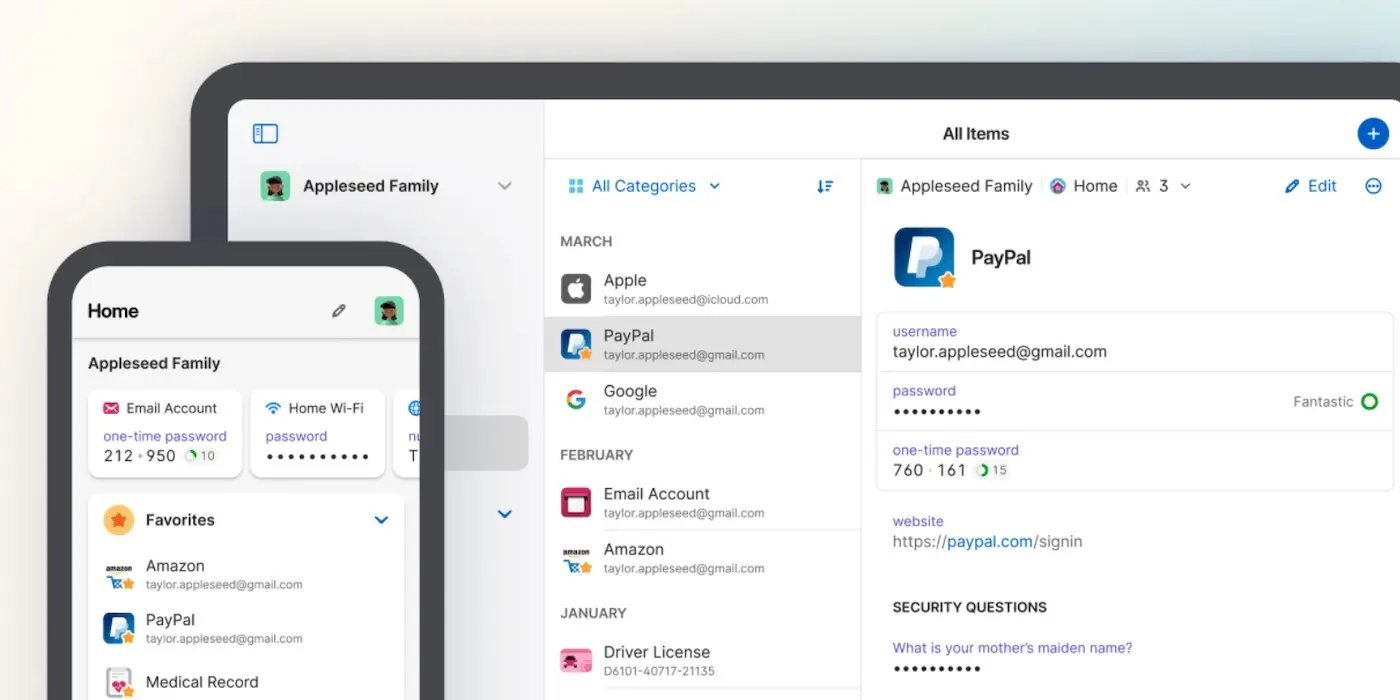
“What’s the Netflix password?” “Did you change the WiFi password?” “I can’t log into the school portal.” Sound familiar? Families share dozens of accounts, and the sticky-note-on-the-fridge method is a security disaster. A family password manager solves it: one secure vault, shared where it should be, private where it shouldn’t, and no more password amnesia. Here’s which ones are actually worth your money.
What Is the Best Password Manager for Families? The Shortlist
1Password Families (~$60/year for 5 people): The premium pick, and my top recommendation for most families. Beautiful apps on every platform, dead-simple sharing (create a shared vault for streaming logins, keep personal vaults private), Travel Mode, and excellent family organization features — you can even designate a family organizer to recover accounts. The interface is the most intuitive for non-technical family members, which matters enormously when you’re onboarding grandparents. 1Password’s family plan details the 5-person structure (add more for $1/month each).
Bitwarden Families (~$40/year for 6 people): The value champion. Open-source (its code is publicly auditable — a real trust advantage), fully featured, and $20/year cheaper than 1Password. The interface is slightly less polished, but functionally it’s 95% as good. For budget-conscious or privacy-purist families, this is the pick. Bitwarden’s pricing page lays out the family tier.
Dashlane Friends & Family (~$90/year for 10 people): The most generous seat count — 10 people makes it the cheapest per-person option for large or extended families. Includes a VPN and dark web monitoring. Interface is good, though the upsells within the app annoy some users.
What About the Free Options?
Apple’s built-in Passwords app (iOS 18+/macOS Sequoia+) and Google Password Manager (in Chrome/Android) are genuinely decent for individuals — free, convenient, and secure. But family sharing is where they fall short: Apple’s family password sharing exists but is clunkier than dedicated apps, and Google’s sharing is limited. If your whole family lives in one ecosystem and only needs basic sharing, the built-ins might suffice. The moment you need cross-platform (iPhone + Windows + Android mixes are common in families), a dedicated manager wins. Also note: browser-built-in managers don’t prompt you to generate strong passwords as aggressively, and their security audits are less transparent.
Features That Matter for Families Specifically
- Shared vaults with permissions: Kids get the Netflix and school portal vault; they don’t get the banking vault. Granular sharing is the killer family feature.
- Emergency access: If something happens to you, a trusted person can request vault access after a waiting period. Every family manager should set this up — it’s the digital equivalent of telling someone where the safe combination is.
- Account recovery: Kids forget master passwords constantly. 1Password’s family organizer recovery and Bitwarden’s emergency access solve this; without it, a forgotten master password means a locked vault.
- Simple onboarding: The best manager is the one your least technical family member will actually use. Browser extensions and mobile autofill should “just work” — test the signup flow yourself before committing the family.
Setting It Up Without the Headache
Roll it out in phases, not all at once. Phase 1: You set up the family account, create shared vaults (Streaming, Household, Kids’ School), and move the 10 most-shared passwords in. Phase 2: Invite family members one at a time, sitting with them for the 10-minute setup (install app, create master password, enable autofill, enable 2FA on the manager itself). Phase 3: Over the following weeks, have everyone add accounts as they log into them — the manager will prompt to save each one. Don’t attempt a big-bang migration of 200 passwords in one sitting; gradual adoption sticks, marathon sessions don’t.
Critical: the family manager account needs two-factor authentication enabled — it’s the keys to the kingdom. And teach everyone the one rule: the master password is memorized, never written down, never reused. Everything else the manager handles.
What About the Kids?
Password managers are fantastic parenting tools in disguise. Kids learn good security habits by osmosis (unique passwords everywhere, no reuse), you control which vaults they see, and the “I forgot my password” support tickets drop to zero. For younger kids, create their logins yourself in a shared vault; for teens, let them have a private vault alongside shared ones — it teaches digital independence with a safety net. Pair this with our parental controls guide for the complete family digital safety setup. And if anyone’s email has been in a breach, check whether your email was hacked — then change those passwords via the manager.
Migrating From Browser-Saved Passwords
Most families start with passwords saved in Chrome or Safari — migrating is easier than feared. Every major password manager offers one-click import from browsers: export from Chrome (Settings > Autofill > Password Manager > Settings > Export) as a CSV, import into 1Password/Bitwarden, then delete the CSV immediately (it’s unencrypted — don’t leave it lying around). After importing, turn off the browser’s “offer to save passwords” so new logins go to the manager, not the browser. Do this migration on a weekend afternoon; the whole family can be moved in under an hour, and you’ll immediately see the duplicates and weak passwords the manager flags — usually dozens. It’s equal parts satisfying and horrifying.
What Happens When Someone Leaves the Family Plan?
Kids grow up, couples separate, roommates move out — plan for it. 1Password and Bitwarden both let organizers remove a person, which revokes their access to shared vaults (their private vault can be exported first). Do a clean handoff: have them export their private vault, remove them from shared vaults, then rotate the passwords for the most sensitive shared accounts (banking, email) as good hygiene. It’s the digital equivalent of changing the locks — not hostile, just prudent. Set the expectation upfront when onboarding: “family plan access ends when you move out, and here’s how the handoff works.” No surprises, no drama.
The Bottom Line
1Password Families for the best experience ($60/year), Bitwarden Families for the best value ($40/year), Dashlane for big families (10 seats). Roll it out gradually, enable 2FA on the manager itself, set up emergency access, and use shared vaults to end the “what’s the password?” era forever. The whole family will wonder how they lived without it.