
 By admin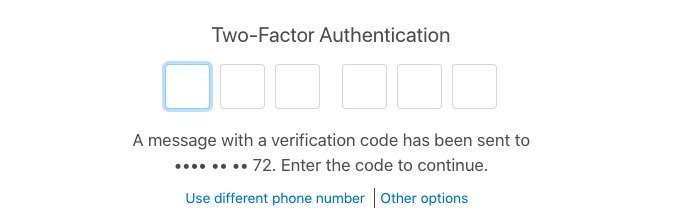
Passwords get stolen every day — billions of them are floating around breach databases right now. Two-factor authentication (2FA) is the single most effective thing you can do about it: even with your password, an attacker can’t get in without the second factor. Microsoft’s research puts it plainly: 2FA blocks 99.9% of automated attacks. Setup takes about 5 minutes per account. Let’s do the important ones today.
How do I set up two factor authentication on my accounts?
Don’t try to do every account at once — you’ll burn out. Do them in this order, which ranks accounts by “damage if hacked”:
- Email (Google, Apple, Outlook). Your email resets every other password — it’s the master key. Secure it first, today.
- Banking and financial (banks, PayPal, Venmo, investment accounts). Obvious.
- Password manager. The vault holding all other passwords needs maximum protection.
- Social media (especially with large followings). Account takeovers here enable scams against your contacts.
- Cloud storage (iCloud, Google Drive, Dropbox). Contains your documents and photo history.
- Everything else as you encounter it — shopping, utilities, forums.
Which Second Factor Should You Use? (Ranked)
- Authenticator apps (best balance): Google Authenticator, Microsoft Authenticator, Authy, or 1Password’s built-in authenticator. They generate time-based codes offline — no cell signal needed, immune to SIM-swapping. This is what most people should use.
- Hardware security keys (strongest): YubiKeys ($25–$55) — phishing-proof physical keys. The gold standard; overkill for most, perfect for high-value targets (journalists, executives, crypto holders).
- Passkeys (the future): Where offered, passkeys replace both password and second factor with device biometrics — stronger and easier. Enable them wherever available; see our email hacking guide’s passkey section for details.
- SMS codes (better than nothing): Vulnerable to SIM-swapping attacks, but still blocks 99% of automated attacks. If SMS is the only option an account offers, take it — imperfect 2FA beats no 2FA enormously.
CISA’s MFA guidance officially recommends exactly this hierarchy.
Setup Walkthroughs: The Big Ones
Google: myaccount.google.com > Security > 2-Step Verification > Get started. Choose authenticator app (scan the QR code with your authenticator app), then add a backup method. Google’s 2-step guide has screenshots.
Apple: Settings > [Your Name] > Sign-In & Security > Two-Factor Authentication > Turn On. Apple uses trusted devices for codes — seamless within the ecosystem.
Microsoft: account.microsoft.com > Security > Advanced security options > Turn on two-step verification. Microsoft Authenticator enables passwordless sign-in as a bonus.
Banks: Usually under Settings > Security after login. Most banks still use SMS — enroll anyway, then check if they offer authenticator app support (increasingly common).
The Backup Codes Nobody Saves (Save Them)
During setup, every service shows backup/recovery codes — one-time codes for when you lose your phone. Screenshot them, print them, store them somewhere safe (a fireproof safe, or your password manager’s secure notes — which itself has 2FA, creating a bootstrap question; the printed copy in a safe resolves it). Losing your authenticator without backup codes means account recovery hell — days of verification, or permanent lockout. This 60-second step is the difference between an inconvenience and a catastrophe when you upgrade phones. Also: when you get a new phone, transfer authenticator apps before wiping the old one (most apps have an export/transfer feature now).
Common Objections, Answered
“It’s annoying.” Modern 2FA usually means tapping “Yes” on a prompt you already have in your hand — about 5 seconds. Authenticator autofill on iOS/Android pastes codes automatically. The friction is wildly overstated.
“What if I lose my phone?” Backup codes (above), plus most services offer multiple second factors — set up two (authenticator + SMS backup, or two authenticators on different devices).
“SMS 2FA got me SIM-swapped.” Rare for average people (attackers target high-value accounts), and authenticator apps eliminate the risk entirely. Don’t let perfect be the enemy of good.
2FA + Password Manager = Done
The complete personal security stack is just two tools: a password manager (unique passwords everywhere, so breaches don’t cascade) plus 2FA (so stolen passwords don’t work). Together they defeat ~99% of real-world attacks — phishing-resistant enough for most threat models. If you’re recovering from a compromise, also read how to tell if your email was hacked to make sure the attacker is fully evicted before you lock the doors.
Helping Family Members Set Up 2FA
The hardest part of 2FA isn’t your account — it’s your parents’. Here’s the low-friction approach: next time you visit, spend 20 minutes securing their email and banking. Use SMS codes for them (not authenticator apps — the usability trade-off isn’t worth it for reluctant users; SMS 2FA still blocks 99% of attacks). Save their backup codes yourself in your password manager’s secure notes (with their knowledge). Write down the steps on paper and leave it with them. And set a calendar reminder to check in yearly — phones get replaced, numbers change, and 2FA setups silently break. Twenty minutes of your time protects people who’d never do it themselves, and who are disproportionately targeted by scammers.
Work Accounts and 2FA: Know Your Employer’s Rules
Corporate 2FA is often mandatory and managed — follow IT’s instructions rather than improvising, since work accounts may require specific authenticator apps (Microsoft Authenticator, Duo) tied to company policies. Don’t enroll personal devices in work 2FA without understanding the implications (some MDM enrollments give employers device management powers). Keep work and personal 2FA separate: use the employer’s prescribed method for work, your own authenticator for personal. And when you leave a job, remove work accounts from your authenticator promptly — lingering access is a security loose end for both sides.
Start Today: The 15-Minute Challenge
Right now, set a timer for 15 minutes and secure your email and one financial account with 2FA. That’s it — two accounts, fifteen minutes, and you’ve eliminated the largest risks. Tomorrow, do two more. Within a week, your critical accounts are locked down. The perfect security setup you never start loses to the good-enough setup you actually finish — so start the timer.
The Bottom Line
Enable 2FA on email, banking, and your password manager today (5 minutes each) — authenticator apps over SMS where possible. Save backup codes somewhere safe. Transfer authenticators before wiping old phones. It’s the highest-ROI security habit in existence: 99.9% of automated attacks, blocked.
[…] data. Non-negotiables: strong unique password plus 2FA on your accounting software (see our 2FA guide), limit user access to those who need it, and be cautious with bank-feed permissions (use read-only […]