
 By admin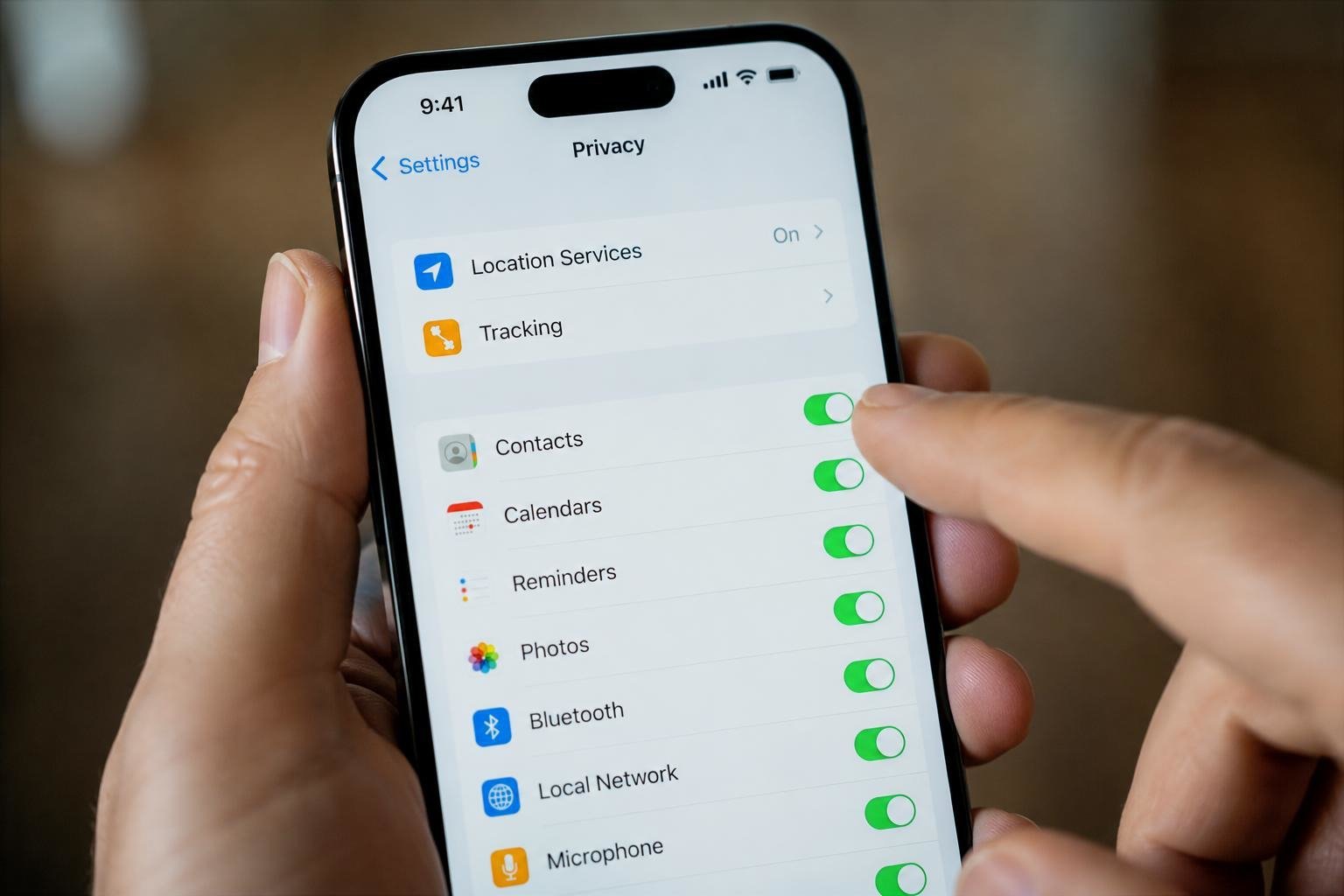
Your weather app doesn’t need to know where you are at 2 AM. Your flashlight app definitely doesn’t. Yet dozens of apps quietly harvest your location around the clock, building detailed maps of your life that get sold to data brokers. The good news: iPhones give you excellent controls — most people just never audit them. Let’s fix that in about ten minutes.
How do I stop apps from tracking my location on iphone?
Go to Settings > Privacy & Security > Location Services. You’ll see every app that’s ever asked for location, each with its current permission. This screen is the mission control — work through it top to bottom. For each app, ask: “Does this app’s core job require my location?” Maps: yes. Weather: yes (or use a manually-set location instead). Social media, shopping, games, utilities: almost always no.
Your options per app:
- Never: The nuclear option. Use for anything that has no business knowing your location — games, most shopping apps, utilities.
- Ask Next Time or When I Share: Good middle ground for apps you use occasionally for location features.
- While Using the App: The right setting for maps, ride-sharing, and delivery apps — they get location only when open and visible.
- Always: Almost nothing needs this. Navigation apps that guide with the screen off are the rare exception. Audit these ruthlessly — “Always” allows background tracking 24/7.
Also toggle off Precise Location for apps that only need your general area (weather, news, retail). They’ll see your city, not your street address — a meaningful privacy win with zero downside. Apple’s location services guide explains each setting officially.
System Services: The Tracking You Didn’t Know About
Scroll to the bottom of Location Services > System Services. Apple itself tracks location for various features — some useful (Find My iPhone, Emergency SOS), some questionable. Review these specifically:
- Significant Locations: Your iPhone logs everywhere you go regularly. You can view the history (it’s disturbingly accurate) and clear it. Turn it off if the creep factor outweighs the marginal Photos-app benefits.
- iPhone Analytics, Popular Near Me, Suggestions: All feed Apple’s data collection. Turn off what you don’t need.
- Keep on: Find My iPhone, Emergency Calls & SOS, and (if you use it) Apple Pay location. These have genuine safety and functionality purposes.
The Sneaky Ones: Location via Other Permissions
Here’s what most guides miss: apps can infer location without location permission. Bluetooth: Retail stores use Bluetooth beacons to track you aisle by aisle — audit Bluetooth access in Privacy & Security > Bluetooth. Local Network: Some apps scan your network to figure out where you are. Photos metadata: Every photo you take embeds GPS coordinates; when you share originals, you share your location history. Strip metadata before posting publicly (most social apps strip it automatically, but messaging originals doesn’t). And WiFi: your phone constantly probes for known networks, broadcasting a list of everywhere you’ve connected — turning off “Ask to Join Networks” and forgetting old networks helps.
What About Google and the Apps Themselves?
iPhone settings control iOS-level access, but Google apps have their own location history (Google Maps Timeline) stored in your Google account — check and delete it at Google’s account settings, and pause Location History there too. Similarly, Facebook, Uber, and others keep server-side location logs regardless of phone permissions; visit each service’s privacy settings to delete stored history. Phone permissions stop future collection; account settings address the past. The Electronic Frontier Foundation’s guides are the gold standard for going deeper on any of this.
Don’t Break What You Actually Use
A word of balance: location services genuinely improve some experiences. Keep “While Using” for maps, ride-sharing, delivery, and weather (or set a manual location in your weather app). Keep Find My on — it’s how you locate a lost phone. Emergency SOS needs location to send help. The goal isn’t zero location sharing; it’s intentional sharing. If an app’s location use surprises you when you think about it, that app shouldn’t have access. Pair this audit with our guide on stopping spam calls — data brokers buy location data and phone numbers from the same sources — and two-factor authentication for the full privacy-hardening trifecta.
Kids’ Phones: Location Done Right
For children’s iPhones, the calculus flips — you want location sharing, but on your terms. Use Family Sharing with Ask to Buy and location sharing enabled so you can find them via Find My, while still locking down third-party apps’ access using the same audit above. Apple’s Screen Time can prevent kids from changing location permissions themselves (Content & Privacy Restrictions > Location Services > Don’t Allow Changes). This gives you the safety of knowing where they are without handing their location to every game developer. Our parental controls guide covers the full setup for young users.
The Annual Privacy Audit (15 Minutes, Once a Year)
Apps update, permissions creep, and new installs accumulate. Once a year — pick your birthday, New Year’s, whatever you’ll remember — do a full privacy pass: Location Services audit (this guide), Bluetooth access, Photos access (change “Full Access” to “Limited” where possible), Microphone and Camera permissions, and Settings > Privacy > Tracking (turn off “Allow Apps to Request to Track” entirely — it defaults new apps to no tracking). Delete apps you haven’t opened in six months; every installed app is a potential data collector. Fifteen minutes a year keeps the creep in check permanently.
What About Android?
Android users: Settings > Location > App location permissions gives you the same per-app controls (Allow only while using, Ask every time, Don’t allow), plus Location Services toggles for WiFi/Bluetooth scanning and Google Location History. The principles in this guide apply identically — audit ruthlessly, prefer “while using,” and kill background access. Google’s own apps are the biggest collectors on Android, so the account-level history cleanup matters even more there.
The Bottom Line
Spend ten minutes in Settings > Privacy > Location Services: set most apps to Never or While Using, disable Precise Location where it’s unnecessary, audit System Services, and check Bluetooth access too. Then clean up Google and app-level location histories. Intentional sharing beats blanket tracking — your weather app will survive knowing only your city.
[…] its settings. Real privacy is layered; Google history is just the most visible layer. Our guide on stopping app location tracking covers the mobile side of the same […]